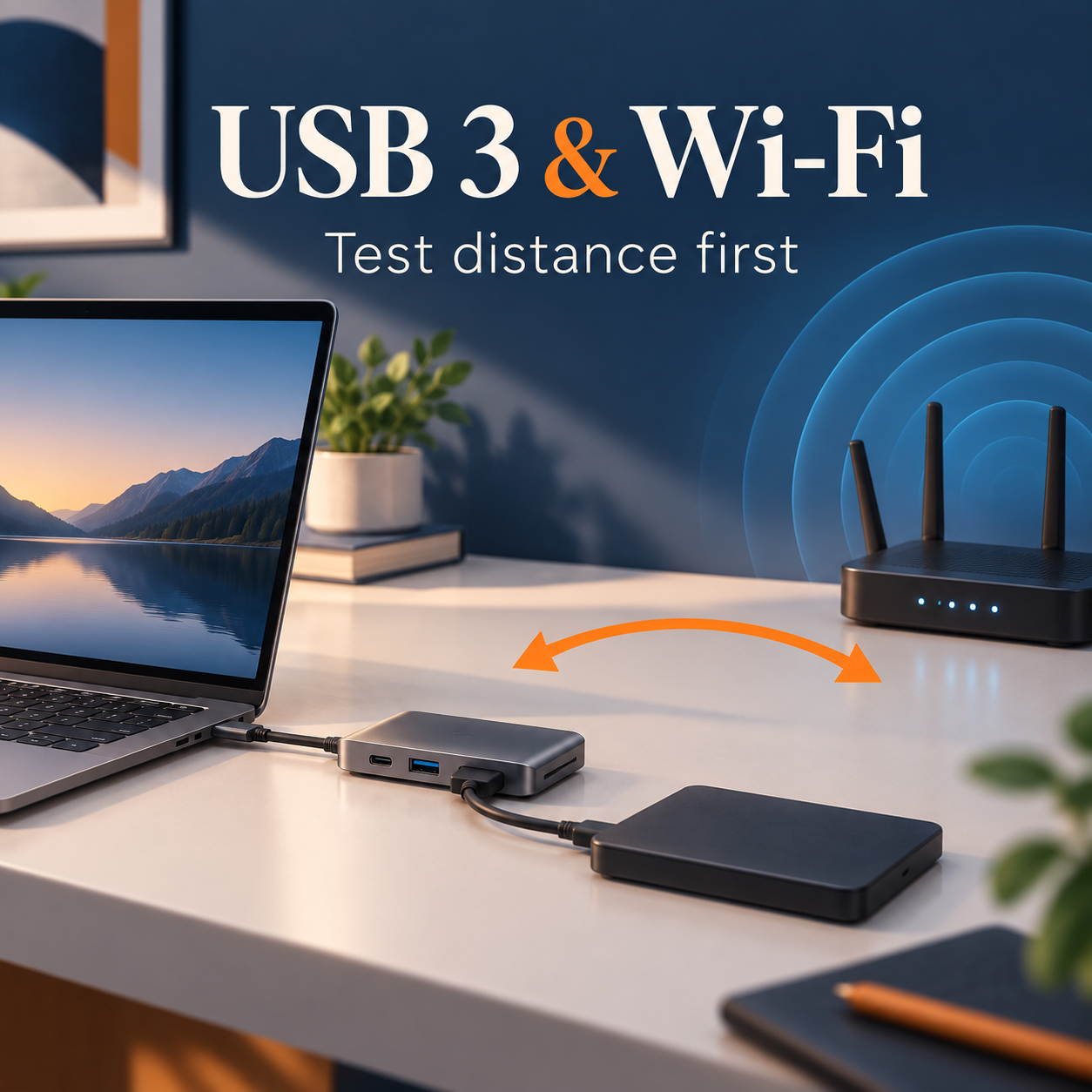
If Wi-Fi gets worse when you connect a hub or external drive, start with a repeatable comparison before replacing hardware. The useful question is whether the problem follows the connected setup, its distance from the receiver, or a particular radio band.
Concept illustration. The spacing arrow suggests a comparison; it is not a measurement or a diagnosis of specific hardware.
USB-C and USB 3 describe different things
USB-C names a connector shape. USB 3 names a data capability; the connector alone does not establish the data mode. A USB-IF-hosted white paper describes how noise from some USB 3 implementations can affect nearby 2.4 GHz wireless receivers. This mechanism does not make every USB-C device a source of interference. [1] [3]
Apple also advises keeping USB 3 and Thunderbolt 3 devices, hubs, and cables away from wireless devices, and using suitable shielded cables. These are useful checks, not proof that your particular hub is faulty. [2]
Make one comparison you can repeat
Keep the computer and router in the same positions. Use the same short workload each time—for example, opening the same local network file or repeating the same call test. Record the symptom you actually notice instead of writing only “bad Wi-Fi.”
- Test with the suspected USB device disconnected.
- Connect it and test while it is idle.
- Repeat during ordinary supported use, such as a file transfer.
- Move the hub or cable farther from the wireless receiver using a compatible arrangement, then repeat.
The idle test matters: a problem need not appear only during a large transfer. Eject storage or stop writes before disconnecting it. Keep power, cable, and data requirements within the device manufacturer’s instructions. [1]
A blank observation plan, not measured results. Replace the prompts with your own repeated observations.
| State | Wi-Fi band | Device position | Workload | Observed result |
|---|---|---|---|---|
| Disconnected | Record band | Record position | Same test | Fill after test |
| Connected, idle | Same band | Same position | Same test | Fill after test |
| Connected, active | Same band | Same position | Same test | Fill after test |
| Moved farther away | Same band | New position | Same test | Fill after test |
Read the pattern before choosing the next step
Interpretation guide for your own comparisons. No equipment was tested for this article.
| Repeated observation | Reasonable next check | What it does not prove |
|---|---|---|
| Distance changes the result | Placement and compatible cable layout | The exact faulty component |
| Only 2.4 GHz is affected | Compare another supported band | Every higher band will work better |
| Failure continues with USB disconnected | Ordinary Wi-Fi and upstream checks | USB is the cause |
| One compatible replacement changes the result | Check the original component with its maker | Every product of that type is defective |
If your router and client support another band, compare it without changing rooms. A different result helps narrow the question, but changing bands also changes radio conditions. Treat it as another observation, not a universal fix. [2]
Buy only after the comparison changes the diagnosis
If distance helps, try a supported layout with more separation. If you still need to isolate a part, substitute one compatible cable, hub, or drive at a time. Record the exact models and connection used. Charging capability alone does not establish that a cable is a suitable data replacement. [3]
A premium label cannot tell you whether a product solves your physical setup. A useful purchase decision follows a repeatable observation: which component or arrangement changes the result, and what compatible replacement would test that explanation?
When to stop testing
Stop if a step would risk stored data, require opening powered hardware, or use an unsupported cable. If a connector overheats or a device repeatedly loses power, follow the manufacturer’s support guidance instead of continuing a Wi-Fi comparison.
If the results disagree, keep the cause unresolved and return to the client, location, workload, and upstream connection. The goal is a small set of reproducible observations you can use yourself or send to support.
Sources were checked on September 14, 2026. The USB white paper was published in 2012 and describes a technical mechanism; the Apple interference guidance was published on April 23, 2025, and its cable comparison on June 10, 2026. This article proposes a diagnostic procedure and does not report a hands-on product test, current product price, or measured performance. [1] [2] [3]
Sources
- USB-IF · USB 3.0 Radio Frequency Interference Impact on 2.4 GHz Wireless Devices
- Apple · Resolve Wi-Fi and Bluetooth issues caused by wireless interference
- Apple · About the Thunderbolt 3 (USB-C) Cable
#USB3 #WiFiTroubleshooting #WirelessInterference #USBC #24GHzWiFi